
Send out Individual Invites
Use the Invite flow to invite a worker to your Organization.
-
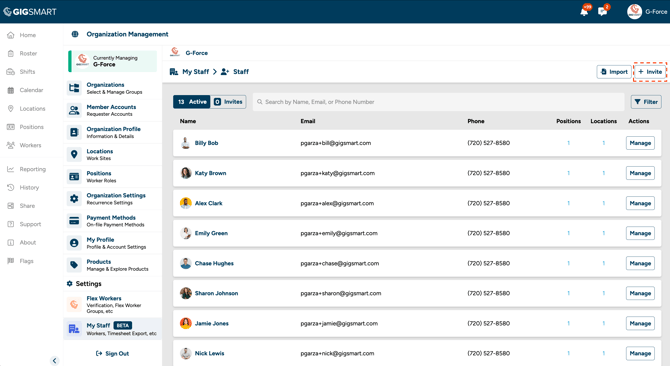
Step 1 - Log into your GigSmart for Business account and go to My Staff > Staff in Organization Management.
-
Step 2 - Select the "+ Invite" button at the top right of the page.
-
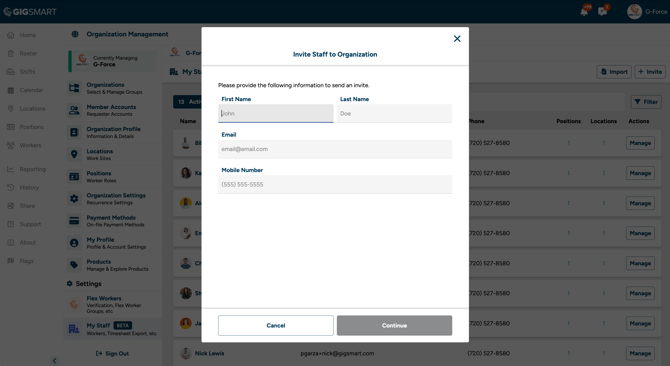
Step 3 - Enter the worker's first name, last name, email, and mobile number, then select "Continue."
-
Step 4 - You can optionally assign the worker to existing Positions and Locations. This can also be done later.
-
Step 5 - Select "Send Invite." The worker will receive an email with a link to accept your invite.
Send out Multiple Invites
Use a CSV file to invite several workers to your organization in one step.
-
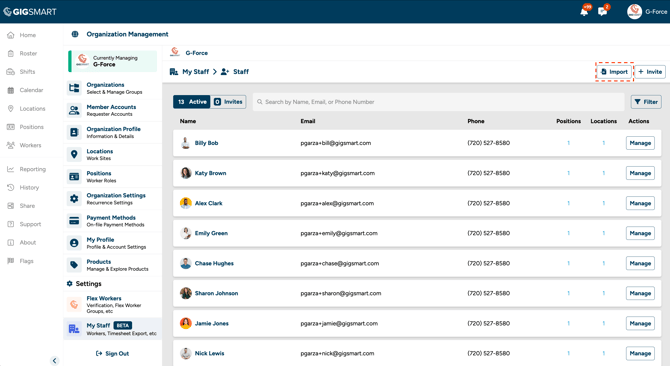
Step 1 - Log into your GigSmart for Business account and go to My Staff > Staff in Organization Management.
-
Step 2 - Select the "Import" button at the top right of the page.
-
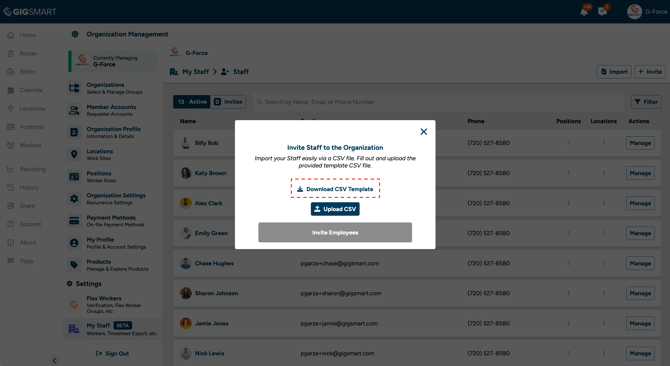
Step 3 - Select "Download CSV Template" to get the file template.
-
Step 4 - Open the template and fill in each row with a Worker's first name, last name, email, and phone number. You can also add position and location names to assign Workers during the invite — this is optional.
-
Step 5 - Save the file as a CSV and select "Upload CSV" to upload it.
-
Step 6 - If there are any errors in your file, they’ll be listed on screen so you can fix them before sending. Once everything looks good, select “Invite Employees.”
Each worker will receive their invite via email. Once they accept and complete onboarding, they’ll appear in your Active Staff tab. You can check the status of pending invites under the Invites tab.