
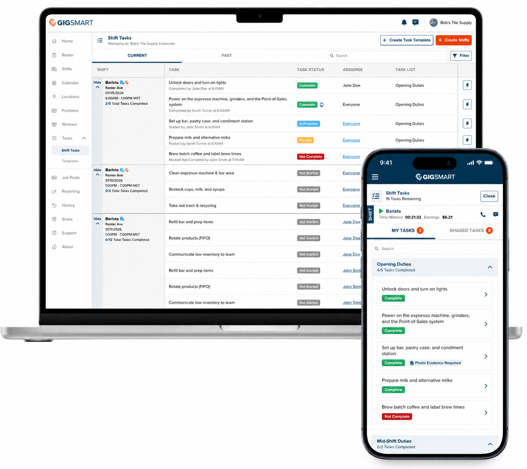
Shift Tasks give you a simple way to set expectations for a Shift (like opening duties or a closing checklist) and track completion as the work happens. It works the same way whether you're scheduling Flex Workers, My Staff, or both.
Build a reusable Task Template
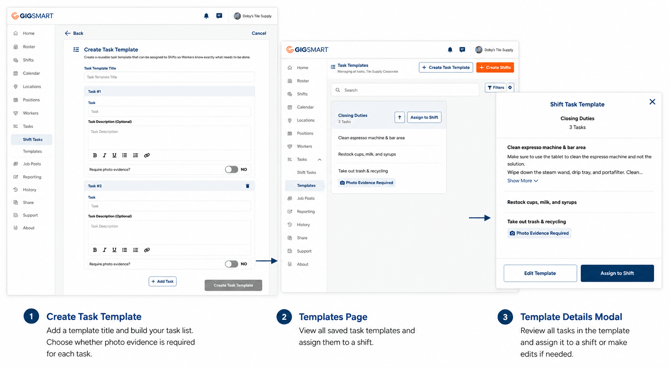
Go to Tasks > Templates and select "Create Task Template." Give it a name (like "Opening Duties"), then add as many tasks as you need. Each one can include an optional description and a "Require photo evidence?" toggle for tasks that need proof.
Templates are reusable across any number of Shifts. You can edit, duplicate, or archive a template any time. Editing only affects future Shift assignments, so Shifts that already have the template attached won't be disrupted.
Add a one-off task without a Template
Not every task needs to live in a reusable Template. From a Shift's dashboard, open its Shift Tasks card and select Add Task to Shift. From there you can either add a full Task List built just for this Shift, or add a single ad-hoc task on its own. Neither option gets saved back as a Template.
Assign a template to your Shifts
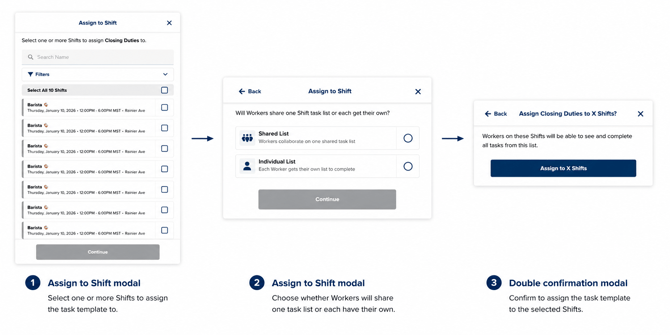
From a template, select "Assign to Shift," then:
- Pick one or more Shifts.
- Choose whether Workers share one list (Shared List) or each get their own copy (Individual List).
- Confirm: the list is added to every Shift you selected.
A single Shift can carry multiple task lists, and you can mix Shared and Individual lists on the same Shift. You can also attach a task list right from Shift Creation, or on a recurring Shift, with no separate trip to the Tasks page.
Monitor completion in real time
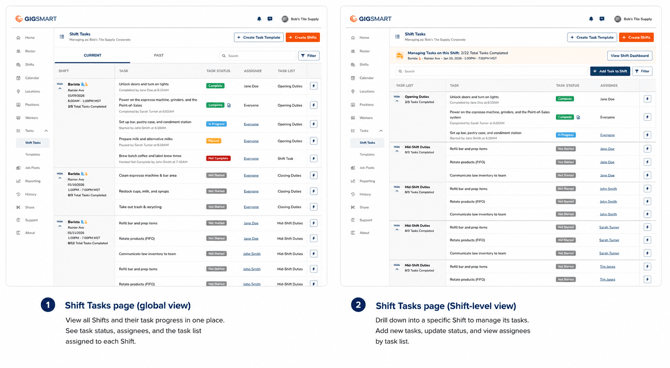
Head to Tasks > Shift Tasks to see every task across every active and upcoming Shift in one place, with Current and Past tabs and filters by Position, Location, Task Status, and Assignee. Each Shift shows a running "X/Y Tasks Completed" count, and every task carries a status: Not Started, In Progress, Paused, Complete, or Not Complete.
From here, you can manage tasks directly: set a status yourself, reassign a task, or edit or duplicate it for that Shift, though editing and reassigning are only available until a task is marked Complete or Not Complete. You can also open the full details on any task to see photo evidence, comments, and a timeline of who did what and when.
A couple of things to know
- Shift Tasks work the same for Flex and My Staff Workers, and they show up separately from Onfleet delivery tasks when a Shift uses both.
- When a Worker clocks out, nothing changes right away. The Shift moves to Pending Approval, and Workers can still finish any task that's already In Progress or Paused for up to 6 hours after clock-out (they can't start a task that was never started). Once the engagement is fully wrapped up (Ended or Canceled) any task still Not Started, In Progress, or Paused is automatically marked Not Complete. From there, you can still correct a task's status between Complete and Not Complete from the Past tab.
- Task completion is informational only. It never blocks you from approving a timesheet, submitting an updated one, or approving in bulk, no matter how many tasks are still open.