
Setting your Offered Hourly Rate
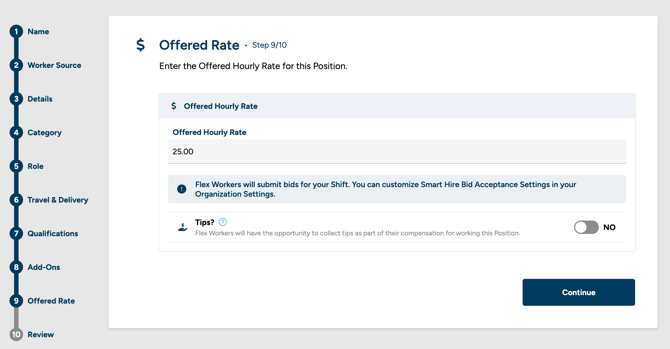
When you create a Position, the Offered Rate step asks for your Offered Hourly Rate. If you are creating a Shift, you'll find this step on the Shift Customization page, then clicking Pay Rate. This is the rate workers will bid against.
Your Offered Hourly Rate can't go below the local minimum wage plus $1, the same rule that applied to Pay Rate before.
How bidding works
Workers can submit a bid in one of two ways:
- Applying directly. If a Shift is open, a worker applies and includes their bid as part of the application.
- Countering an offer. If Smart Hire or you send a worker a direct offer at your Offered Hourly Rate, they can accept it as-is or send a counter if they want a different rate.
Once a worker submits a bid, it lands in Bid Review. From there, one of three things happens:
- You accept the bid. The worker gets a Shift offer.
- You reject the bid. The worker moves to Inactive, the same as denying an application.
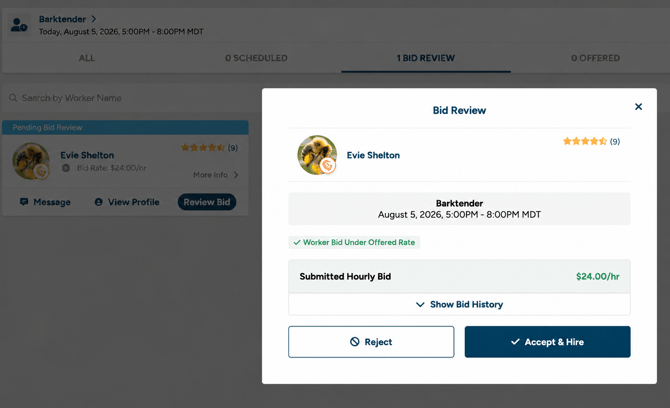
- You send a counter-offer. This only applies if the bid comes in above your Offered Hourly Rate. You can propose a different rate, and the worker can accept, reject, or counter back. There's no limit to how many rounds this can go.
Reviewing bids
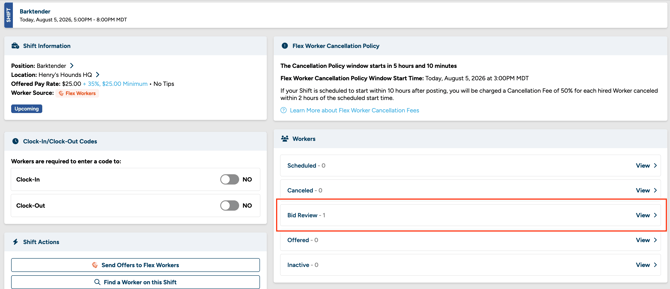
You'll find bids waiting for review right on the Shift page, under Bid Review. Each bid is labeled Under, At, or Above your Offered Hourly Rate. Your options for that bid, like accepting, rejecting, or sending a counter-offer, depend on which label it has.
Automating bid decisions with Bid Acceptance Settings
If you'd rather not review every bid manually, Bid Acceptance Settings let Smart Hire accept qualifying bids for you. You'll find these under Flex Worker > Bid Acceptance Settings, including:
- Bid Acceptance Priority – choose whether workers are prioritized by worker group membership, prior engagements with you, or lowest bid.
- Max Bid for worker groups – set a maximum rate at which workers in a given worker group are automatically offered the Shift.
- Max Bid for previous and all workers – set similar maximums for workers you've worked with before, or for all Flex workers.
- Auto-counter above threshold – turn this on to have Smart Hire automatically send a counter-offer at your max rate to workers who bid above it, instead of leaving those bids for manual review.
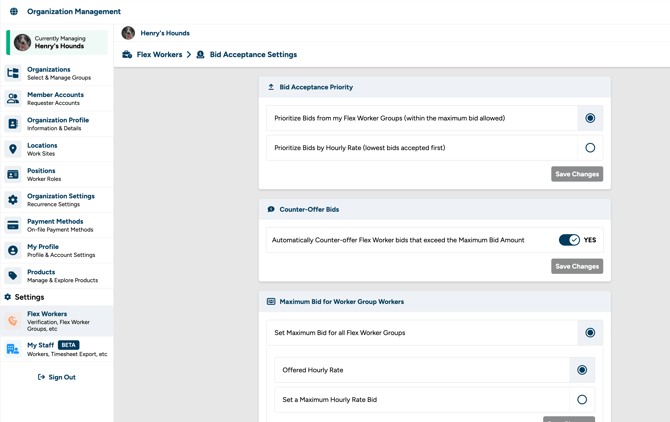
Workers who bid within your set range get an automatic offer. Workers who bid above it either get an automatic counter, if you've turned that setting on, or stay in Bid Review for you to handle manually.