
Where do I find my pending timesheets?
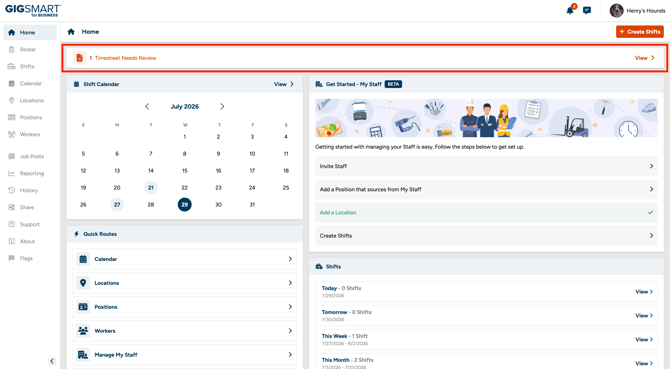
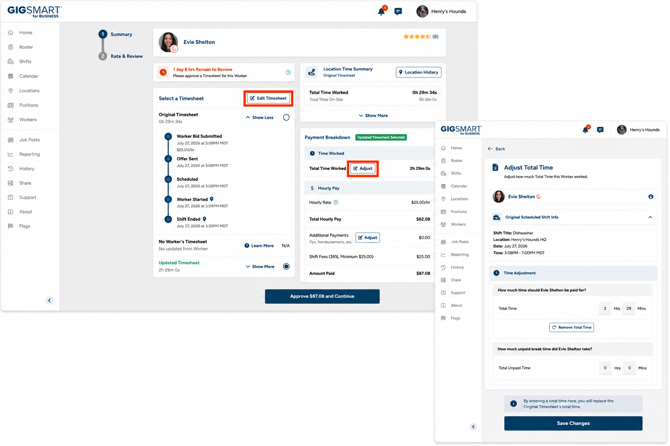
Look for the timesheet alert on your Home screen in GigSmart for Business. It'll read something like "1 Timesheet Needs Review" when one's waiting, or show your full list of pending timesheets when there's more than one. Select it to open the bulk timesheet screen with everything waiting on you in one place, where you can edit Start and End Times, overwrite with total time worked, or add breaks and additional payments.
The version you're viewing (Original, Worker, or Updated) shows under the Worker's name. Select it to compare.
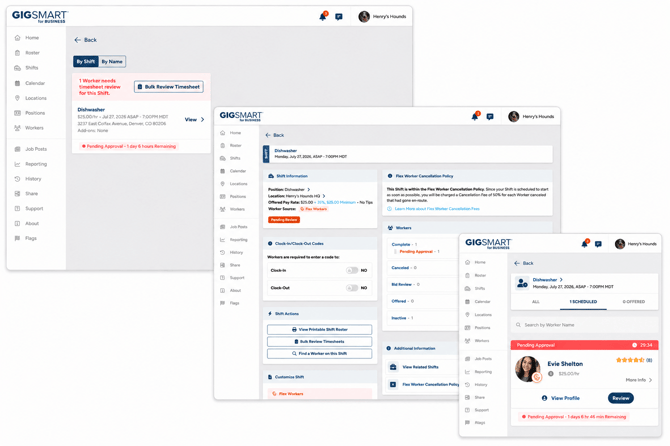
Approve everything with Submit Bulk Timesheets, or use the Actions menu to approve one at a time. For higher volumes, download your pending timesheets as a CSV, edit the file, and upload it back in.
What happens if I don't approve in time?
If you take no action on your pending timesheets, they will move into auto approval after 48 business hours.
Auto-approval submits the Original timesheet.
The Original is the raw time recorded on the Shift: clock-in to clock-out, exactly as the app captured it. The time originally recorded on the Shift is what gets approved, and that's what your Worker gets paid for.
So handle these before the window closes:
- A Worker clocked in early or forgot to clock out: the original reflects that time, and that's what you'll pay
- A Worker suggested an edit you agree with: their version doesn't go through on its own
- You meant to add breaks or extra pay
- No time was recorded at all: there's nothing to approve, so your worker won't get paid
Once a timesheet auto-approves, the original is final and payment goes out against it.
Can a Worker change their timesheet before it reaches me?
Yes. Workers have six hours after the Shift ends to edit their hours and send you the updated version, or submit the Original as-is.
When a Worker suggests an edit, you'll see red Pending Approval text. From there you can submit the Original unchanged, the Worker's revised version, or a revised version with your own edits.
What's a Payment Dispute?
If something looks off with a Worker's hours or pay, they can open a Payment Dispute within 24 hours after you approve their timesheet. The primary contact associated with the shift will receive a text message and a push notification when a dispute is submitted.
You have one business day to respond: approve the dispute, reject it, or pay a different amount.
Timesheet timeline
|
When |
What happens |
|
Your shift ends |
You can edit or approve the timesheet right after your shift ends. The Worker has 6 hours to review and submit edits to their timesheet |
|
A worker submits a timesheet |
You have 48 business hours to approve after the shift ends, regardless of when your worker submits their timesheet |
|
No action in 48 business hours |
The Original timesheet auto-approves |
|
After timesheet approval |
The Worker has 24 hours to open a Payment Dispute |
|
Dispute opened by worker |
You have 1 business day to respond |
Related